A Wear OS app for Vallox heat recovery ventilation. See how fresh the air is,
switch modes in two taps, and let the app tune the unit to the way your home breathes.
See your air
CO2, humidity and temperatures at a glance, coloured green, yellow or red.
Smart modes
Every mode you pick on the watch sets its own fan speed and CO2 limit, and Optimize tunes Automatic to your home.
Know the cost
A weekly summary of air quality and fan electricity, and why it changed.
Independent app. Not made or endorsed by Vallox Oy.
Wrist Control for Vallox2
Why it pays off
The same fresh air, with less fan.
Vallox unit on its own
With Wrist Control
Modes
Away and Automatic share one fan speed, so one of them is always a compromise.
Each mode sets its own fan speed and CO2 limit the moment you switch.
Tuning
Set by hand once, the same for every home and every season.
Optimize fits Automatic to your home's last 7 days, shows a forecast and can undo.
Your week
Current values and charts to read yourself.
Fresh-air share, fan electricity and why it changed, in one glance.
One home, one week, six ways to run the unit
CO2 shows how stale the air is: fresh up to 800 ppm , stuffy to 1200
, poor above . Fan power grows roughly with the cube of speed,
so 70 % uses about 60 % more electricity than 60 %.
Fan electricity 60 % all day = 100
Morning CO2typical, ppm
Busy hoursCO2, ppm
Fan at 70 % all day
159
648
785
Fan at 60 % all dayhow this home ran
100
686
846
Optimize: Clean air
224
616
721
Optimize: Balance
95
676
773
Optimize: Quiet
24
810
916
Automatic, basic settingsAway 30 %, limit 800
18
862
967
40 % less
fan electricity than running at 70 % all day, with about the same air.
That is Optimize Balance.
Fresher busy hours
than 60 % all day: 773 instead of 846 ppm,
while using 5 % less electricity.
76 % less
fan electricity with Quiet, and a quieter home.
Mornings rise to about 810 ppm.
Estimates from one home's 7-day history, made with the same model Optimize uses.
Fan electricity only, relative to running at 60 % all day. Heating energy is not included:
less air also means less heat to recover in winter. "Busy hours" are the stuffiest 10 % of the time.
Wrist Control for Vallox3
The app
Everything about your air, one swipe apart.
Swipe left and right between pages. Tap a page to act on it.
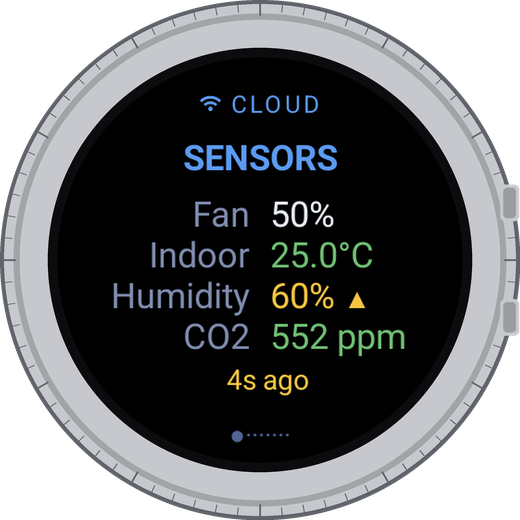
Sensors
How the air in your home is right now: fan speed, temperature, humidity and CO2, coloured by comfort. Tap to see the comfort scales.
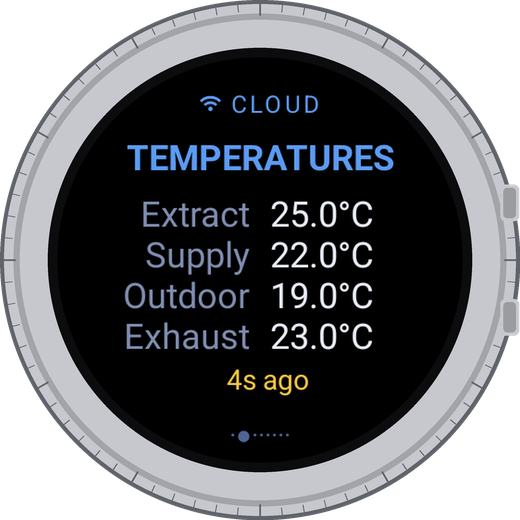
Temperatures
The four air streams: extract air from the rooms, supply air to them, outdoor air coming in and exhaust air going out.
Unit
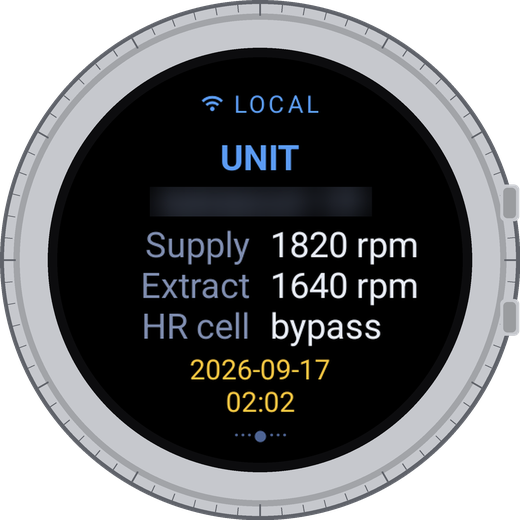
Your unit's name, the speed of both fans, whether the heat exchanger is recovering heat or bypassed to cool, and the unit's own clock.
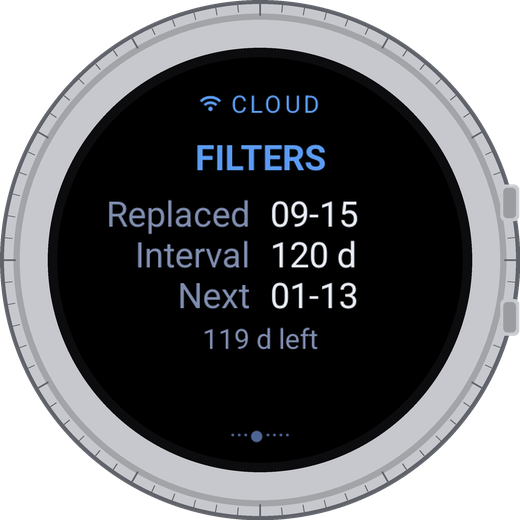
Filters
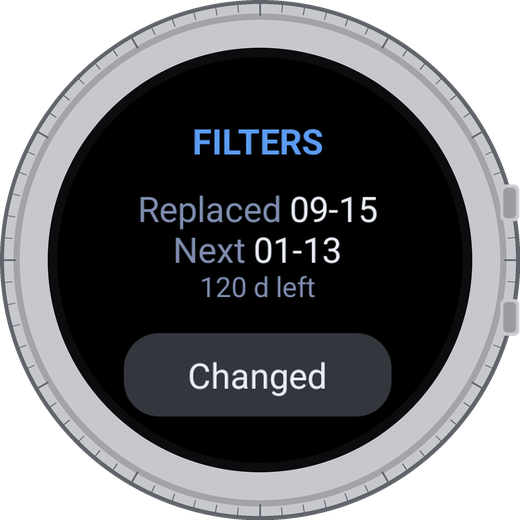
When the filters were changed and when the next change is due. After fitting new ones, tap Changed twice: the date is saved in the unit.
Ventilation
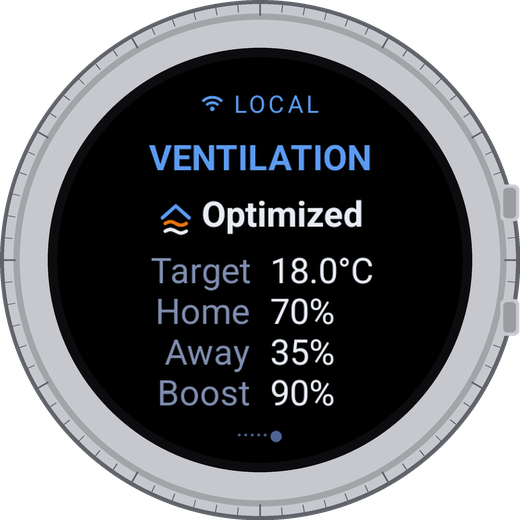
The mode the unit runs now and the fan speed of each mode. Tap to switch modes.
Mode
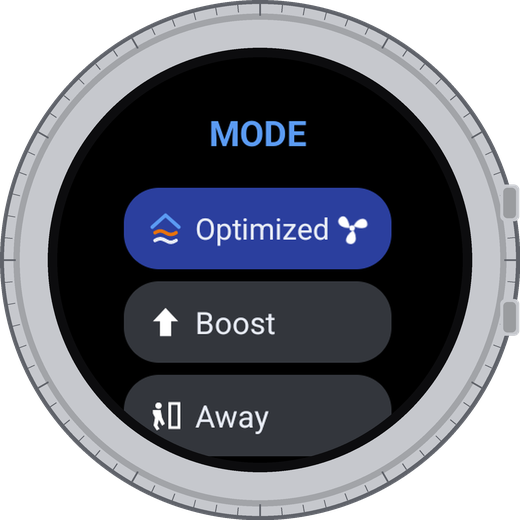
Pick a mode here, not on the unit's panel: the watch also sets the values that belong to it. The running mode spins.
Settings
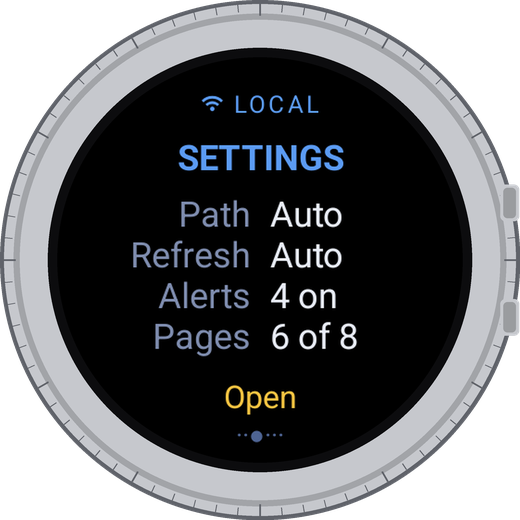
Where the numbers come from, how often they refresh, which alerts are on and which pages are shown.
On your watch face
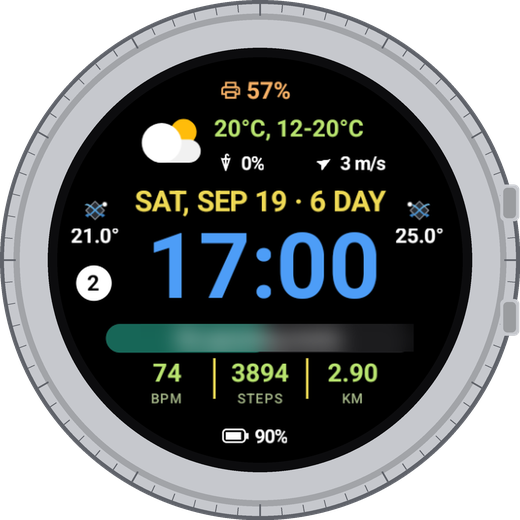
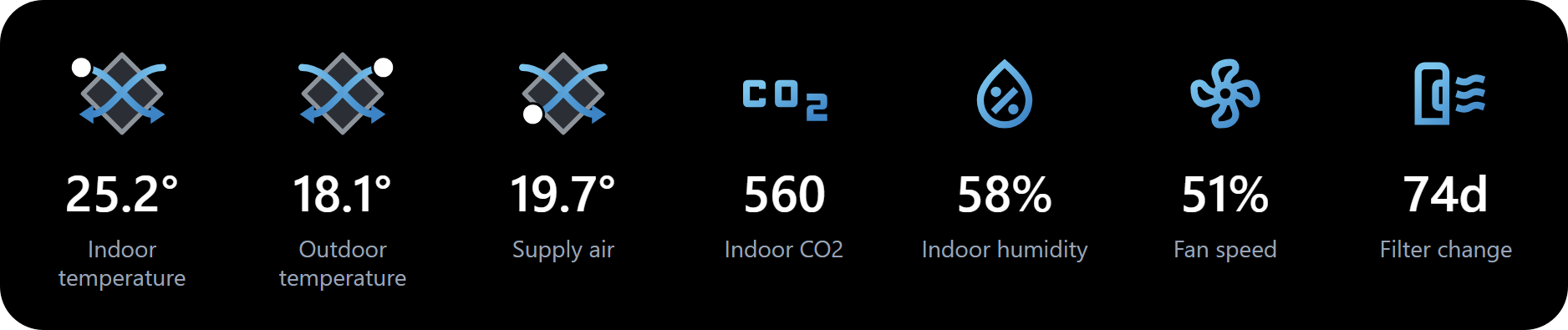
Indoor, outdoor or supply air temperature, CO2, humidity, fan speed or days to the filter change on your watch face, updated without opening the app.
Home and away
At home the watch talks to the unit over Wi-Fi. Away, it uses the Vallox cloud and your MyVallox account.
Alerts that don't nag
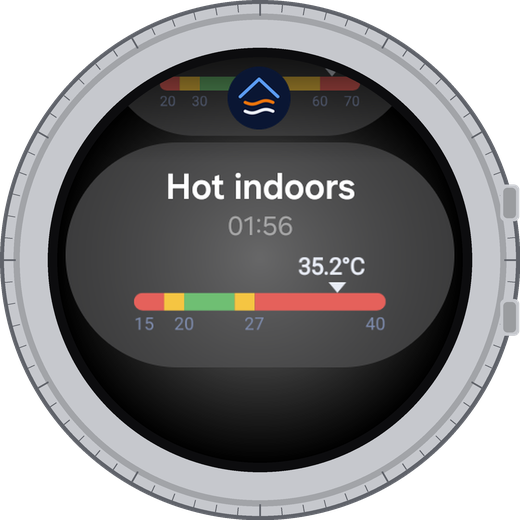
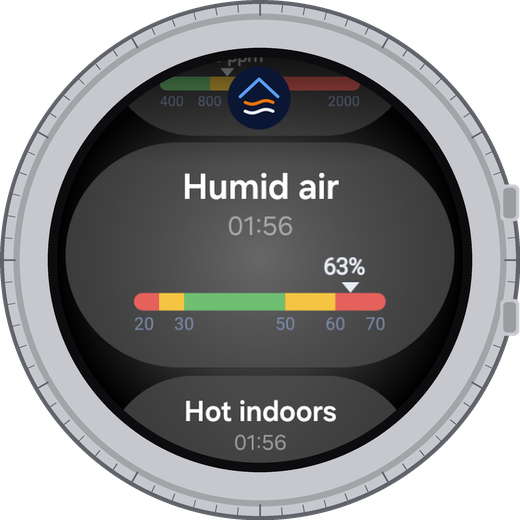
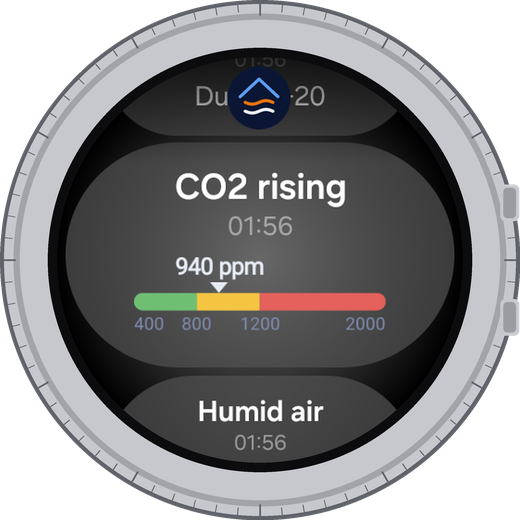
One notice when indoor air leaves the comfort range, with the same scale as in the app. One when filters are due. No repeats.
Your pages
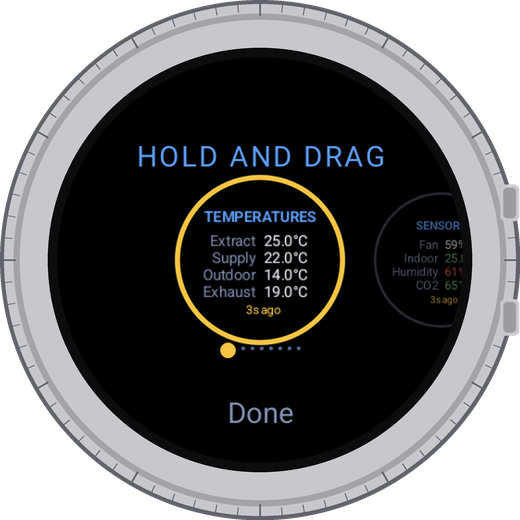
Hold a page to reorder or hide pages. Keep only what you look at. Ventilation and Settings always stay.
Sign in from the phone
No typing on the watch: the phone app sends your MyVallox login to the watch. English, Suomi, Lietuvių, Polski.
Wrist Control for Vallox4
Smart modes · the heart of the app
Switch modes on the watch, and every mode runs the way it should.
Your Vallox keeps one fan speed for both Away and Automatic, and one CO2 limit
(the point where it starts adding air) for every mode. The unit's panel switches only the mode, so the unit
keeps whatever values were set last. The watch switches the mode and sets that mode's own values, in the same tap.
Same tap
On the unit's panel
On the watch
You leave hometap Away
Away keeps the speed tuned for Automatic, 45 %: about 3.4 times the fan electricity for an empty house.
Away runs at 30 %, the right speed for an empty house.
You come backtap Automatic / Optimized
Automatic starts from the Away speed of 30 %: mornings reach about 862 ppm, stuffy.
Optimized returns to your Optimize settings: mornings about 676 ppm.
Mode
Use it when
The watch also sets
Lasts
At home
People are home and you want a steady fan
CO2 limit 800 ppm
Until you switch
Away
The house is empty
Fan 30 %, CO2 limit 800 ppm
Until you switch
Optimized first in the list
You want the fan to follow the air
Your Optimize settings (fan at rest 45 %, limit 600 ppm before you optimize). Slows to 30 % when nobody is home, to 35 % when winter air is dry; offers a Boost when humidity jumps
Until you switch
Boost
Cooking, sauna, guests
Nothing
60 min, then back to the previous mode
Custom
Fireplace or special use
Nothing
Its timer, then back
Auto last in the list
You want the Vallox factory behaviour
Factory values: fan 30 %, CO2 limit 800 ppm
Until you switch
How Automatic decides
Two settings decide it. The Away speed is the lowest speed the fan runs at.
The CO2 limit is the point where the unit starts adding air: above it, about 1 % of fan
speed for every 10 ppm, up to the Boost speed.
A lower limit or a higher Away speed means fresher air and more fan. Finding the right pair for your
home is what Optimize does.
While Optimized is on, the app checks three rules after every reading. It never drives
the fans directly: two rules only change the fan at rest (the Away speed Automatic starts from), and the
unit's own CO2 control keeps working between readings. The third rule only offers a Boost. The numbers were
checked against a year of real history (2025-09-15 - 2026-09-14, 47,789 records every 10 min).
Rule
When
What happens
Ends when
In a year of history
Nobody home
CO2 at most 460 ppm for 90 min without a break, no humidity jumps
Fan at rest 45 → 30 %
CO2 rises 80 ppm above its lowest value, or humidity jumps
89 times, about 1.7 a week, median 1.7 h
Dry air
Below +5 °C outdoors, indoor humidity under 38 % in two readings in a row, CO2 at least 100 ppm under the limit
Fan at rest → 35 %
Humidity rises above 43 %
6 times in a winter, about 67 h in total
Boost offer
Humidity up 8 % within about 30 min
Notification "Shower?" or "Cooking?" - tap to Boost
At most once an hour
About 220 a year, 4 a week
Why the fan at rest, not the mode
"Nobody home" does not switch to Away. It only lowers the speed Automatic starts from. When people come
back, nobody has to wait for the watch: the unit sees CO2 rising and adds air by itself, and at the next
reading the app restores the Optimized value. The same holds for "Dry air".
Shower or cooking
Told apart roughly: if the extract air gets at least 1 °C warmer together with the humidity, it says
"Cooking?", otherwise "Shower?". Hence the question mark.
Boost and Custom
While a temporary mode runs, the automation changes nothing and waits until the unit is back in Optimized.
Week schedule
If the unit's week schedule is on, it would switch the mode at set times and quietly end Optimized. The
first time you pick Optimized, the app asks once: pause the schedule while Optimized is on? With Pause the
schedule is switched off - its events are kept - and switched back on when you choose another lasting mode.
The app restores only what it paused itself. Under Optimized a line says "Schedule paused" or "Schedule on".
Wrist Control for Vallox6
Optimized · how often, and what never changes
The watch looks when something happens.
Data refresh: Auto (default)
Reading
Hours when your home is usually busy
every 20 min
Ordinary hours
every 30 min
Night, 1-5 h
every 60 min
A change was just seen (humidity +3 % or CO2 +100 ppm since the last reading)
every 15 min for an hour
The busy hours are learned for each unit from its own history (when Optimize or Statistics
downloads it) and from the changes the watch sees. Until there is enough data: 6-8 and 19-22 h. A fixed 20 min,
30 min or 1 h, or Only in app can be chosen in Settings → Data refresh. With Only in app nothing runs in the
background: no notifications and no automation. At night Android may group the readings.
What the app changes
On its own only four things: the mode, the Away speed, the CO2 limit and the
week schedule switch. When you ask, it also writes the filter change date and corrects the unit's clock.
What it never changes
The Home and Boost speeds, humidity control, the heater, bypass and Custom settings. Optimize stays within
a safe range (fan at rest 20-70 %, CO2 limit 500-1000 ppm), and Undo restores the previous values.
Without a connection
The app changes nothing, and the unit keeps running with the last settings.
Planned
Per-unit thresholds: the "empty home" CO2 level and the humidity jump worked out for each unit from its
own history - today they are one apartment's numbers. Summer cooling: more air when the night is cooler
outside than inside, less on a hot day. Weather forecast - once there is summer experience.
The full paper
The same logic with the Vallox control curve, the mode recipes and Optimize step by step - for installers:
Settings made for your home, not for an average one.
Every home produces CO2 differently: how many people, how big the rooms, when you sleep and
cook. Optimize reads your unit's last 7 days, learns how much fresh air your home needs at each time of day,
and picks the Away speed and CO2 limit for Automatic.
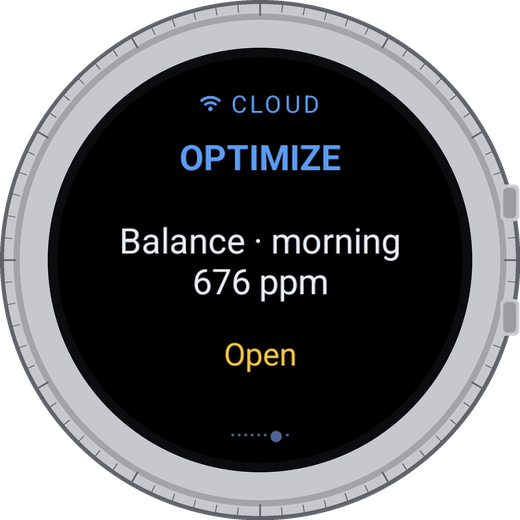
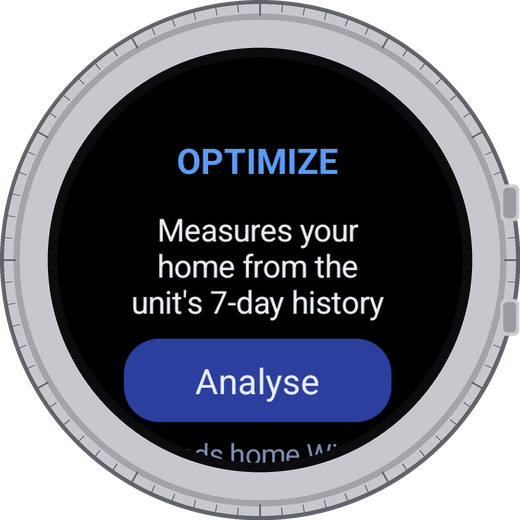
1 · Analyse
Tap Analyse. The watch reads the unit's 7-day history: from the unit at home, from the Vallox cloud when away.
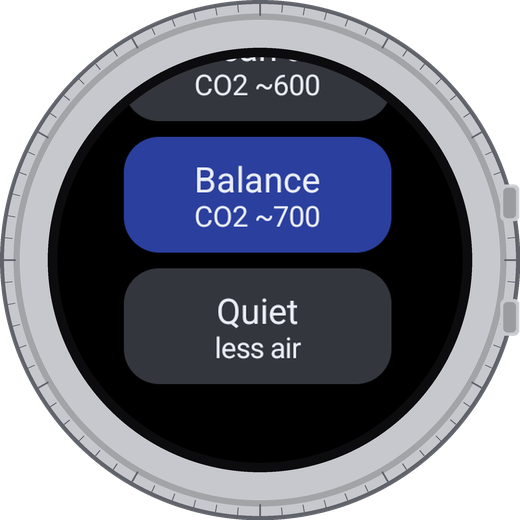
2 · Choose a goal
Clean air (about 600 ppm), Balance (about 700) or Quiet: less air, less fan.
3 · See the forecast
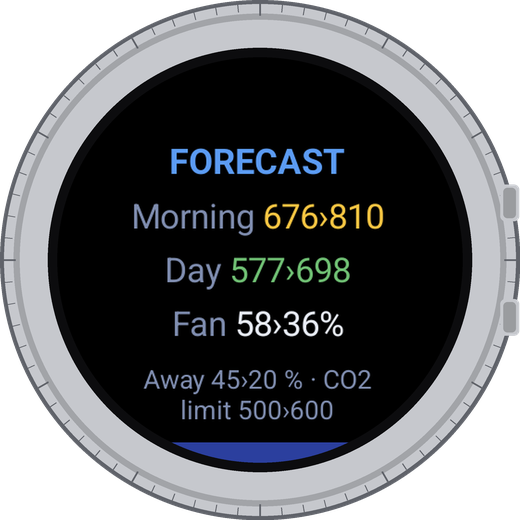
Morning and daytime CO2 and fan speed, now › after. Nothing changes until you tap Apply.
4 · Check after a day
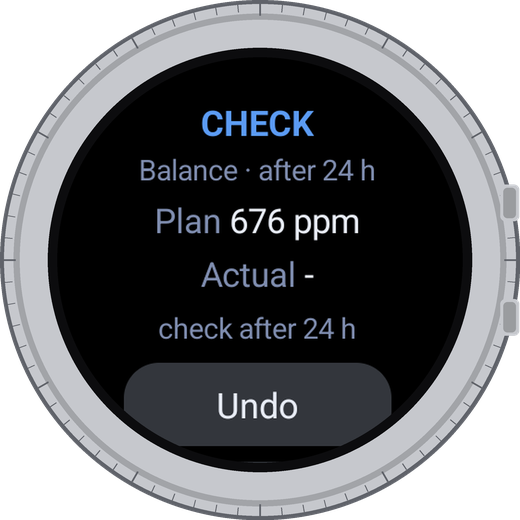
The watch compares the forecast with the real morning. Undo brings back your old values.
How it works
Learns your home. For the morning (6-10), day (10-18), evening (18-24) and night, it measures how fast your home adds CO2, from CO2 and fan speed in the history.
Tries every option. It simulates each Away speed from 20 to 70 % and CO2 limit from 500 to 1000 ppm and predicts where CO2 settles.
Picks the cheapest that works. Of the options that meet the goal at every time of day, in typical and in busy hours, it takes the one with the least fan electricity. If none does, it shows the closest.
Stays safe. It never writes values outside those ranges, and keeps your previous values for Undo.
Example home: Balance chose Away speed 45 % and CO2 limit 500 ppm.
Wrist Control for Vallox8
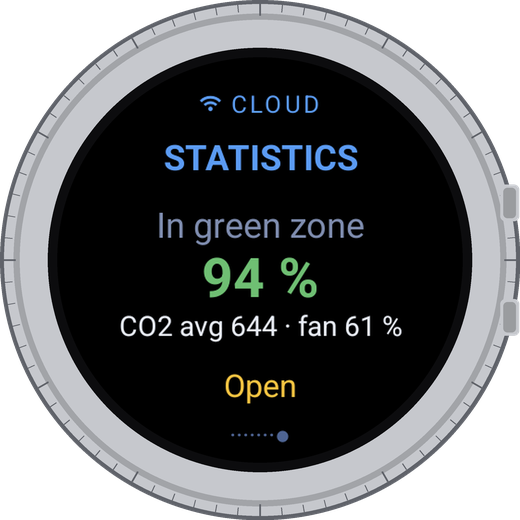
Statistics
Your week: was the air good, and what did it cost?
Statistics reads the same 7-day history and answers three questions: how fresh the air was,
how much the fans used compared with last week, and why that changed.
Fresh air share
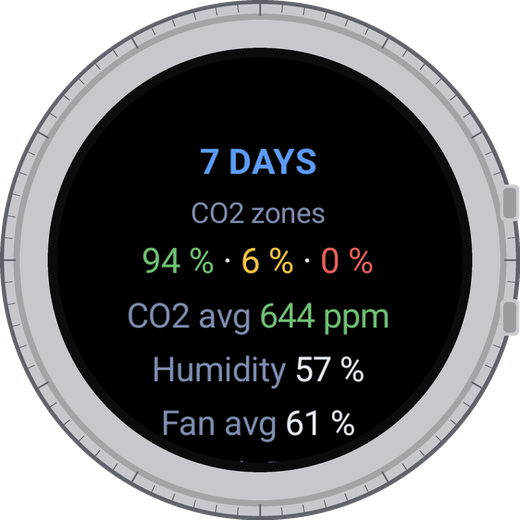
How much of the week CO2 stayed up to 800 ppm, with average CO2 and fan speed.
The week in detail
Time in fresh, stuffy and poor air, and average CO2, humidity and fan next to last week.
Electricity and why
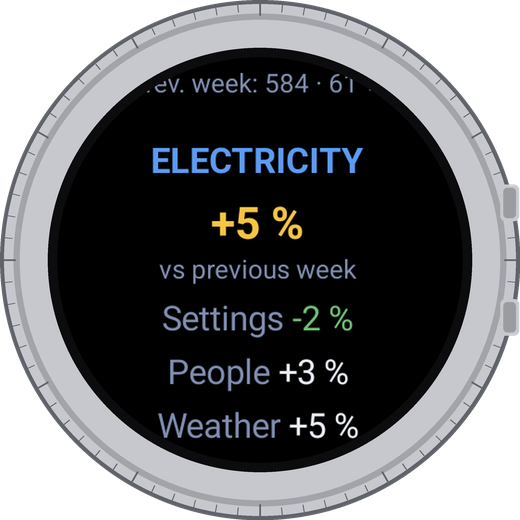
Fan electricity against last week, split into three reasons.
Settings
You changed a mode's speed or ran a different mode.
People
The unit added air because CO2 rose: more people at home, guests.
Weather and other
Humidity boosts, summer cooling, manual boosts.
How it works
Electricity from fan speed. Fan power grows roughly with the cube of speed, so the change is shown in percent, not kWh.
Reads the settings from the history. For every hour it finds the mode's base speed and the CO2 limit that was in use, so changes made on the panel or in another app are counted correctly.
Splits the change. Base speed counts as Settings, the extra added for CO2 as People, everything else as Weather and other.
Heating season. When it is cold outside, it also shows heat loss per degree of cold, which takes the weather out of the comparison.
Requirements
Wear OS 4 or newer. A Vallox unit with MyVallox: cloud account or access on your home network.
Privacy
No ads, no analytics, no tracking. Your account stays on the watch, password encrypted, sent only to the Vallox cloud.
Price
Free to download. Pro (smart modes, Optimize, Statistics) is a one-time purchase with 14 days free to try.
Independent
Wrist Control for Vallox is not made, endorsed or supported by Vallox Oy. Vallox and MyVallox are trademarks of Vallox Oy.
Questions, feedback, a photo of something wronghello@tinyowllabs.com
App and privacy policytinyowllabs.com/wristcontrol
Independent developerTinyOwl
Wrist Control for Vallox9
Appendix
Getting around
‹ ›Swipe sideways next page
●Tap a page open its window
‹Swipe sideways in a window back
↑Swipe up close the app
◎Turn the bezel scroll or flip pages
1
tap→
Comfort scales
2
tap→
Mode
3
tap→
↻
Refresh
4
tap→
Filters changed
5
tap→
Settings
6
tap→
Mode
7
tap→
Optimize
8
tap→
Statistics
Hold any page
Pages turn into round cards. Drag to change the order, tap to finish.
Hide pages in Settings.
Wrist Control for Vallox10
Appendix
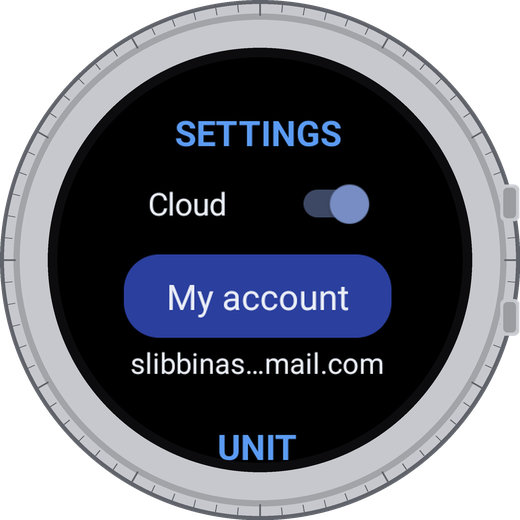
Settings
Tap the SETTINGS page. The window scrolls; turn the bezel or swipe up.
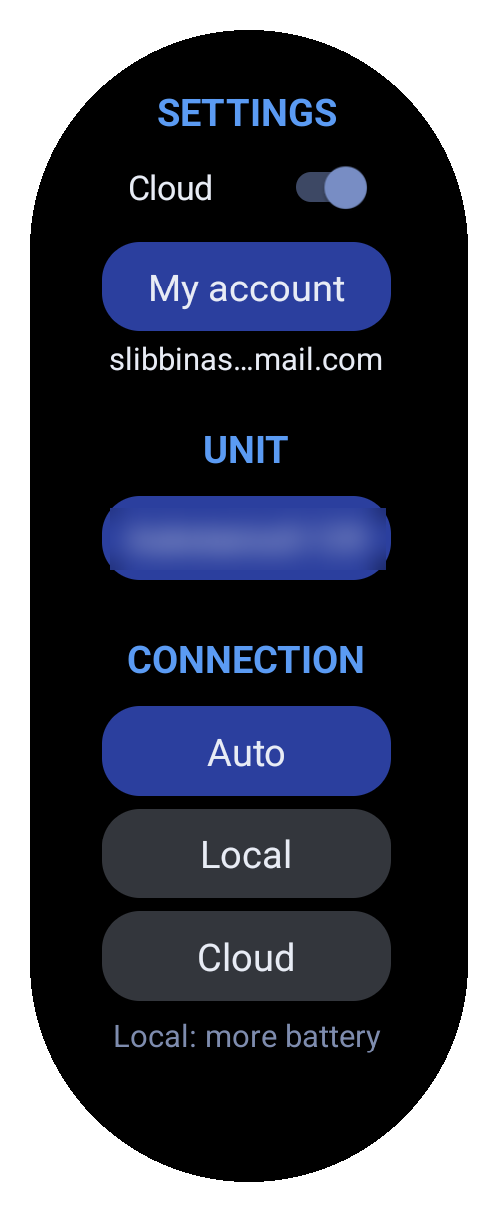
Cloud · My account
Sign in here or from the phone app. Under the button: the account, and a warning if Vallox rejects it
Unit · Connection
Which unit, and the path: Auto, home Wi-Fi only or cloud only. Without the cloud, Find units searches your network
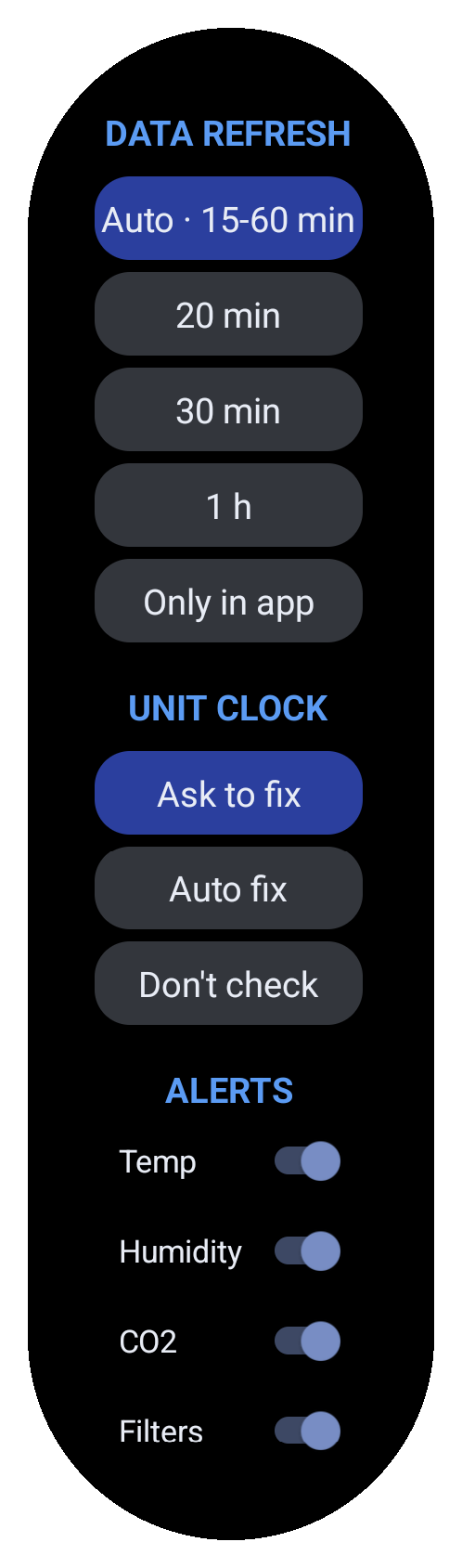
Data refresh
Auto (default): every 20-60 min, every 15 after a change. Or fixed, or only in the app
Unit clock
The unit keeps its own time. Ask to fix, fix automatically, or don't check
Alerts
Notifications for temperature, humidity, CO2 and filters
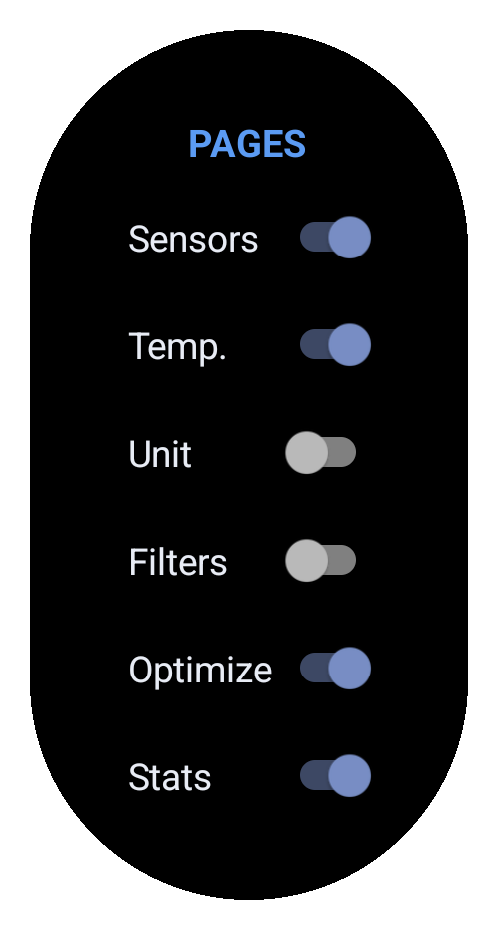
Pages
Show or hide each page. Ventilation and Settings always stay
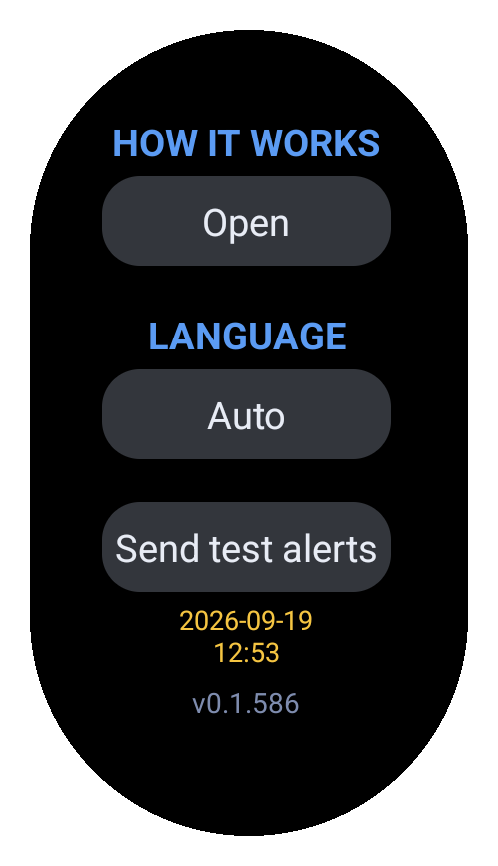
How it works · Language
Short help on every feature. English, Suomi, Lietuvių, Polski
Send test alerts
Five sample notifications, to see how they look on your watch
Questions, feedback, a photo of something wronghello@tinyowllabs.com
App and privacy policytinyowllabs.com/wristcontrol
Independent developerTinyOwl
Wrist Control for Vallox11
Appendix
On your wrist without opening the app
Complications
Touch and hold the watch face, tap Customize, pick a slot and choose Wrist Control. Tap a complication to open the app.
The diamond is the unit's heat exchanger, drawn like on the unit itself. The white dot shows where the temperature is measured.
Filter change shows days left, with a minus when overdue.
Notifications
Temperaturebelow 18 or above 27 °C
Humiditybelow 25 or above 60 %
CO2from 800 ppm, again from 1200
Unit clockmore than 5 min off; tap to fix
One notice when a value leaves its range, no repeats; it disappears when the value is back.
The scale is the same as in the app, so you see how far out you are. Filters get a notice when a change is due.
Temperature, humidity, CO2 and filter notices can be turned off in Settings → Alerts. The clock notice cannot:
a wrong unit clock spoils the history that Optimize and Statistics rely on. Choose Don't check to silence it.
A notice that suggests a mode - high CO2 or humidity, or "Shower?" with Tap to Boost - opens the Ventilation page,
so you see the mode change.

 1 · Analyse
 2 · Choose a goal
 3 · See the forecast
 4 · Check after a day
 The week in detail
 Electricity and why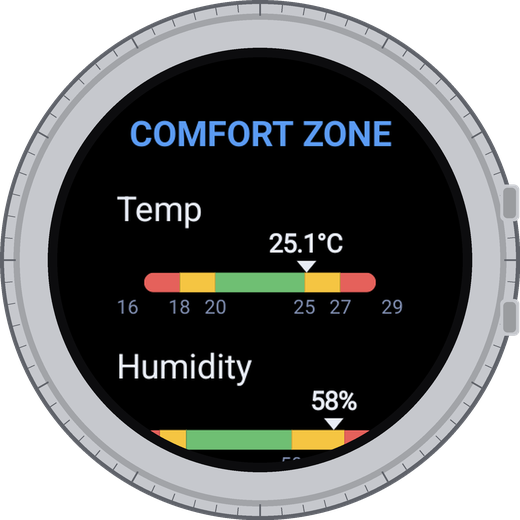
 Temperature
 Humidity
 CO2
CO2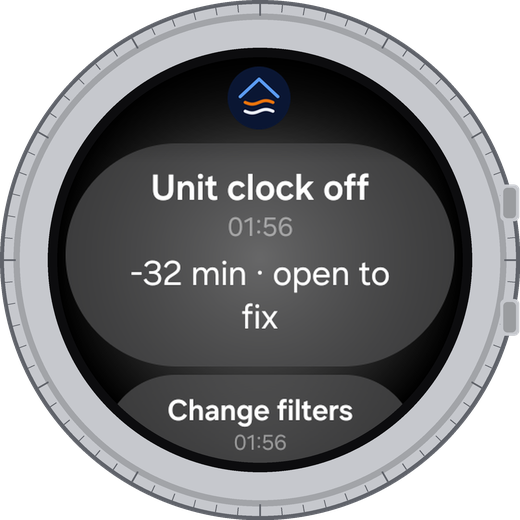 Unit clock